Mobile Access Instructions

Home
Web Access Guide
Content Guide
Support
If you have the free version of Immersify please uninstall and reinstall the app via the instructions below:
Search for “Immersify” on the App Store or Google Play; alternatively, click on the button above correspondent to your mobile operating system.

Step 1

Step 2

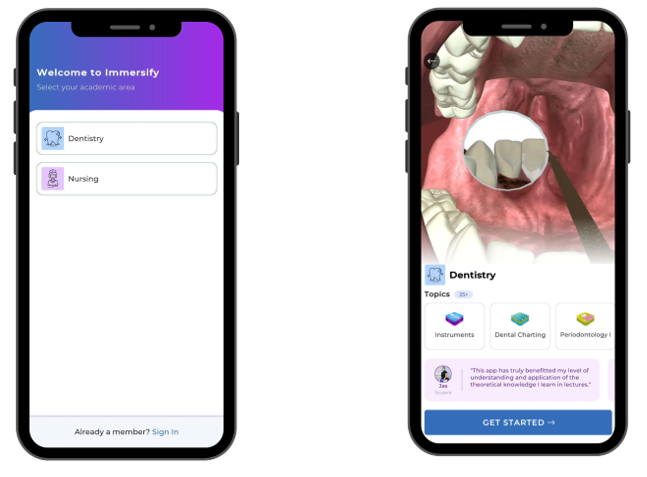
Select an academic area, don’t worry if you select the wrong one, you can always change it later.
Click “Get Started”, this will create a temporary guest account for you.

Step 3

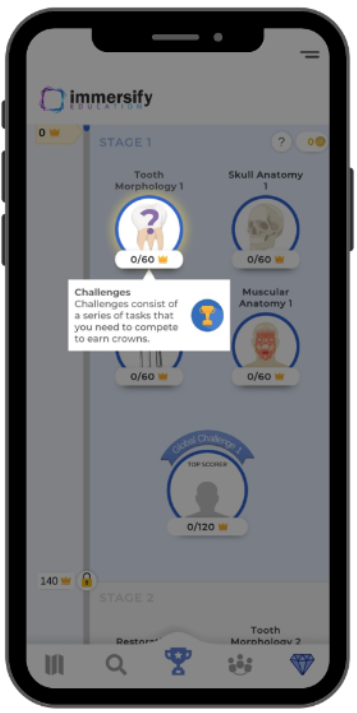
  • Follow the on-screen tutorial, this will familiarize you with the app and take you through one of our experiences. 
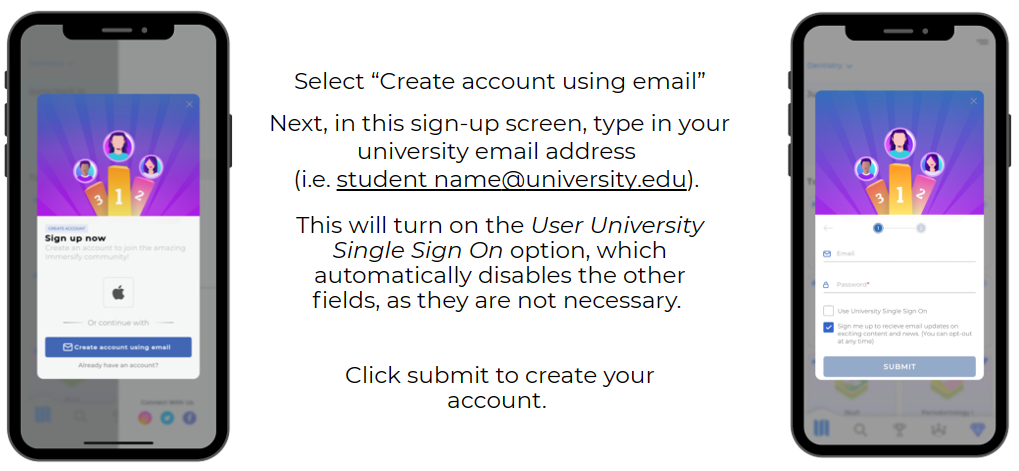
  • Upon completion you will then be able to create a full account using your university SSO
    ​​

Step 4

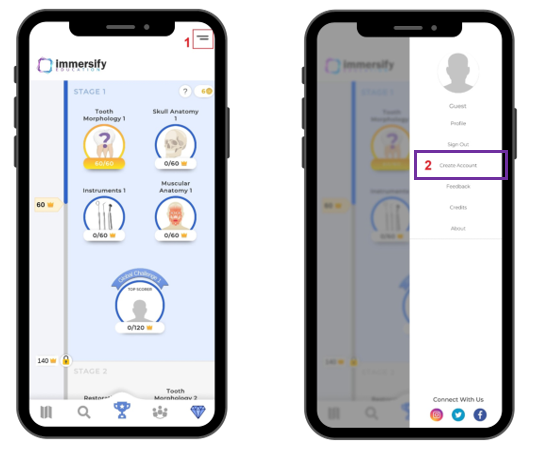
To do this, open the side menu highlighted in the red box at the top right of image 1, and then click Create Account as shown on Image 2.

Step 5

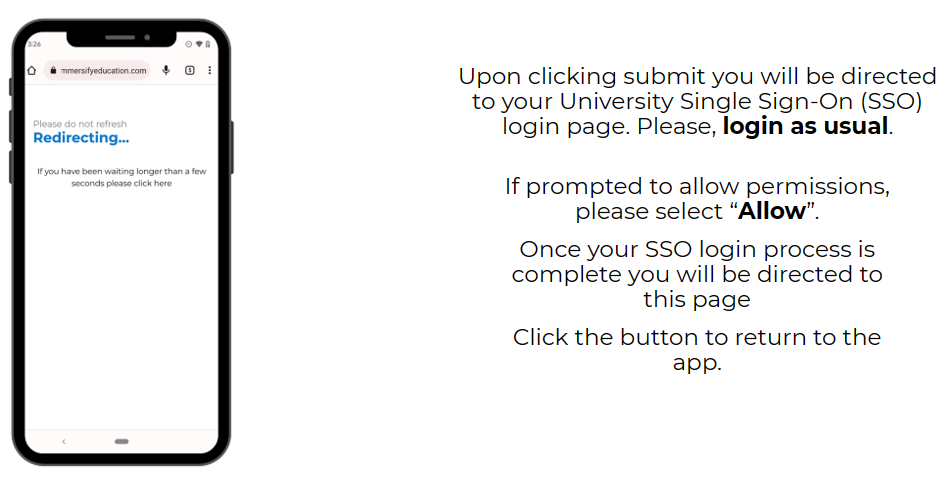
Step 6

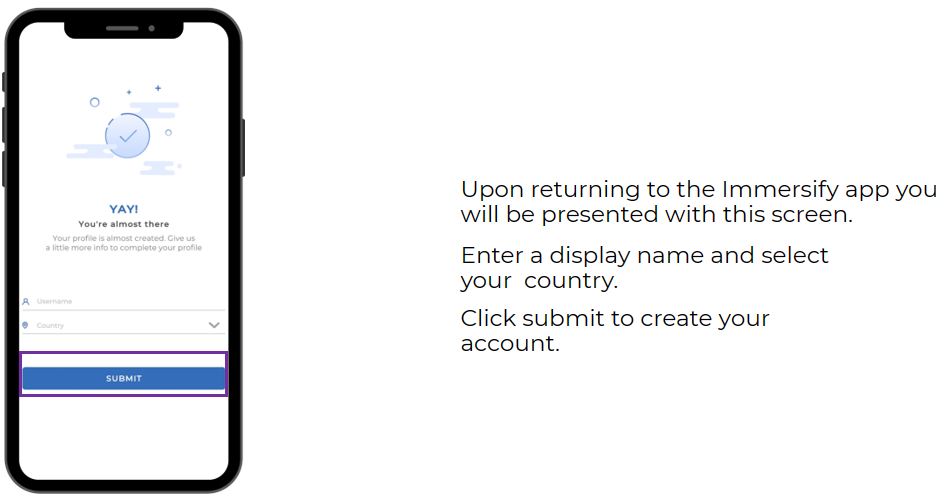
Step 7

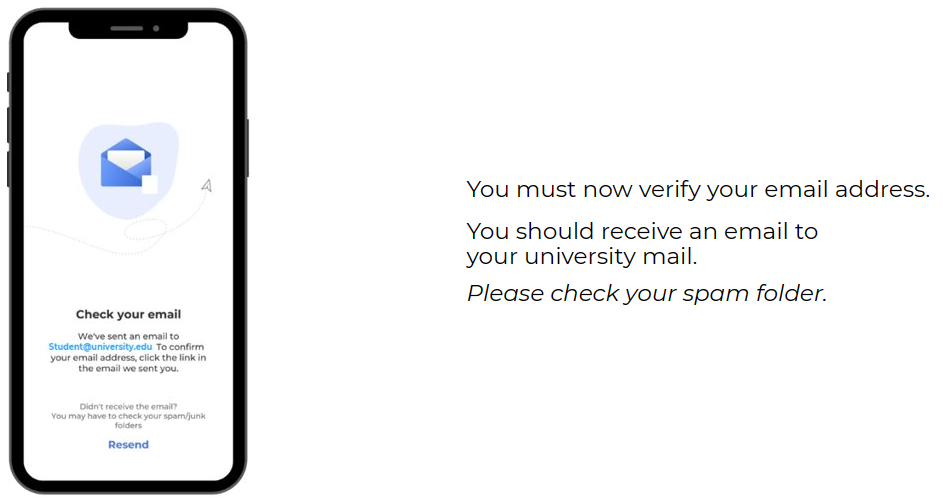
Step 8

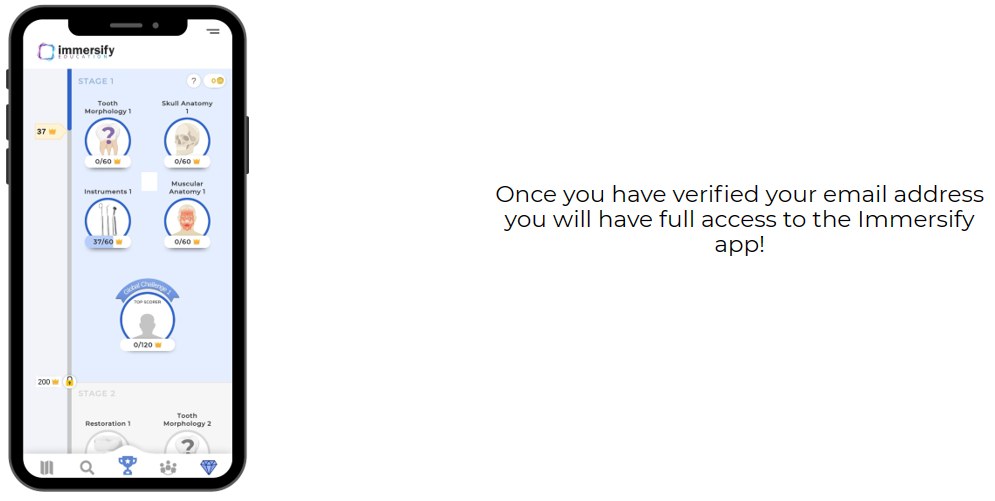
Step 9 – Final Step!

A selection of compatible devices

Android

  • From Samsung Galaxy A4, J5, Note 9, Tab S6, Note 9, Z Flip and S9 onwards
  • From Google Pixel 2 onwards
  • From Huawei Mate 20, P20 and P30 onwards
  • Xiaomi Redmi Note 7, Note 7 Pro and Mi A3
  • OnePlus​​
Additional Android Devices

iOS

  • From iPhone 6S onwards
  • iPad Mini 4, iPad Mini 5
  • iPad Air 3, iPad Air 4
  • iPad (5th through 8th generation)
  • iPad Pro
Privacy Settings
We use cookies to enhance your experience while using our website. If you are using our Services via a browser you can restrict, block or remove cookies through your web browser settings. We also use content and scripts from third parties that may use tracking technologies. You can selectively provide your consent below to allow such third party embeds. For complete information about the cookies we use, data we collect and how we process them, please check our Privacy Policy
Youtube
Consent to display content from Youtube
Vimeo
Consent to display content from Vimeo
Google Maps
Consent to display content from Google